
Stillness does not mean only cutting noise. With the Apple Watch, it becomes a choice – what pings get left unheard, plus reasons behind that pick. Many walk through steps like flipping switches for ringtones or sliding into Quiet Time, yet skip the deeper bit: how notifications move when hushed, what shifts under muting, if quiet truly brings calm.
Use the Bell Icon in Control Center
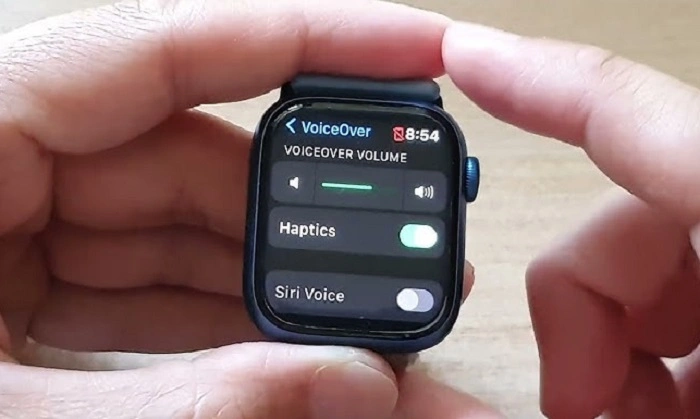
Most folks start by sliding a finger upward across the display, pulling open Control Center before pressing the bell symbol. Orange now. No buzz. No noise. Easy enough. Yet incomplete. That setting kills tap feedback – nothing pulses against skin – but certain watch features keep responding with sight cues. Maybe a small red mark shows. The glass may glow anyway. Quiet? Not really. Closer to muting than vanishing.
Use Theater Mode
Here’s a different method involving the side button. Tap it and you’ll see either Power Reserve or the shutdown options appear. Yet pressing and holding the upper section of the Digital Crown – no matter which screen you’re on – dips the screen brightness right away. This dimming trick activates Theater Mode. You can find this setting buried in Settings then General, though it also shows up in the Control Center as a faceless mask symbol. When turned on, sounds get muted, raising your wrist won’t light the display, plus vibrations stop entirely. Not just silence. Still, when activated, alerts from the Clock app shake the device – that is how it works. Built-in alert bypass.
What Happens to Notifications
Hidden things still happen. Silence cuts what you see, not what arrives. Pop open Notification Center, drag your finger down – every alert sits lined up. Messages wait there. So do reminders. Even scheduled pings stack up unseen. Your phone holds each one. Not asleep. Just paused.
Turn On Do Not Disturb
Most people turn to Do Not Disturb when they need quiet. You can switch it on using Control Center or by going to Settings, then Focus, then selecting Do Not Disturb. It stops calls, silences alerts, plus keeps the display dark unless needed. Still, there’s a catch. Ringing again within three minutes lets the second call slip through – an old trick Apple kept from earlier iOS versions meant for urgent moments. Just like Live Activities or app alerts that track your location, even allowed ones can break silence. Turning them off one by one is what actually brings stillness.
Use Focus Modes
Starts with Focus modes. Deeper than basic settings. Build one yourself – like “Reading” – linked to triggers such as time, place, or whether your iPhone connects to another device. Imagine turning on “Workstation” only if the video plays via AirPlay from your MacBook. Inside every Focus, you decide exactly which alerts get through. Choose who gets through with a ping. Everyone else waits quietly till you’re out. Silence stays silent unless invited.
When Focus Modes Still Allow Alerts
Still, Focus acts up sometimes. Hours later, a forgotten countdown – say, from boiling pasta – might send a quiet tap through the device, despite total silence being on. That happens because things you start yourself push ahead in line, deep inside. The system’s need to alert can only be muted so much. Quiet fades when waiting too long.
Reduce Screen Glow
The screen might stay lit if wrist sensing is disabled under Settings then Passcode. That often leads to unwanted light spills during nighttime. When enabled, dimming happens faster after lowering your arm. Paired with lower brightness – set by hand or timed through Accessibility options – the glow fades more quietly. Less glare shows up in shadowed spaces when these choices stack.
Also Read: How to Remove Dog Hair From Clothes
Adjust Haptics and Volume
A small detail hides inside Sounds & Haptics. Look for something called “Prominent Haptic.” Turn that off, vibrations become briefer, gentler. Still a tap, just quieter. Combine this with sliding the ringtone level down in the Control Center, using the bar there, and the phone feels more subtle. Physical pulses drop a noticeable step.
Use Airplane Mode Carefully
When Airplane Mode activates, it shuts down cellular, Wi-Fi, then Bluetooth – stopping almost every alert tied to data flow. Messages through iMessage stop arriving. Email updates pause. Background syncing halts too. It works well for quiet. Yet being unreachable brings trade-offs. Help via Emergency SOS fails to reach responders. Crash sensors detect impact but cannot report without a signal. Once connection returns, messages pour back in like backed-up traffic. Silence broken by an avalanche of pings.
Automate Quiet Settings
Most quiet comes later if things run by themselves. Try setting up steps in the iPhone’s Shortcuts – turn on Theater Mode while turning down screen light, starting Reading Focus, stopping workout recording at once. A small touch of an NFC chip on your nightstand kicks it off. Touch that spot again, everything goes back. No need to think through each move.
Simple Physical Tricks
A different way works too. Try tucking the watch into a sock – this quiets whatever vibrations are left. Flip it over on a surface, that does almost the same thing. Simple stuff. Always ready. Gets the job done right away.
Why True Silence Is Hard
It isn’t about turning things off. Just having the gadget nearby, even if it does nothing, tugs at focus. A few brain specialists think wearing tech keeps a faint alertness humming beneath thought – tension you never notice. True quiet might mean taking it away entirely instead of adjusting settings.
Practical Steps
- The upward slide comes before pressing the sound switch. Tap the little chime to silence alerts fast.
- Tap the mask symbol to activate Theater Mode, which disables raise-to-wake automatically.
- Open Settings then go to Focus to create dedicated profiles.
- Schedule Focus activation based on time or location.
- Turn off the noticeable vibration under Sounds and Haptics.
- Slide the sound down right from your wrist. Volume adjusts where you wear it.
- Turn it on only if you accept losing signal. Sometimes quiet comes at a cost.
- Turn on Wrist Detection to limit idle glow.
- Automate combinations via Shortcuts with triggers.
- Once it’s time to empty your mind completely, take it out of the system.
How Each Silence Option Works
| Option | What It Changes |
| Bell icon | Mutes alerts fast |
| Theater Mode | Stops sounds and raise-to-wake |
| Do Not Disturb | Silences most calls and alerts |
| Focus modes | Controls who and what gets through |
| Airplane Mode | Stops most data-based alerts |
One by one, each move cuts sound in its own way. When stacked, they shape quiet like a sculptor. Not every switch wipes everything clean. To kill it fully needs choices on top of more choices. Silence never comes easy – the device holds back, not out of stubbornness but sense.
FAQs About Silencing Apple Watch
What is the fastest way to silence Apple Watch?
Tap the bell icon in Control Center.
Does Theater Mode stop the screen from lighting up?
Yes. It disables raise-to-wake.
Will Do Not Disturb block every alert?
No. Some allowed alerts may still come through.
Does Airplane Mode stop messages?
Yes. It stops most data-based messages until connection returns.
Can I automate silent settings?
Yes. Shortcuts can combine Theater Mode, Focus, and brightness changes.
Silence on an Apple Watch never comes down to flipping a single toggle. Knowing what pings deserve attention, what fades into noise, shapes how quiet feels each day. Stillness holds only so long – watched closely, shaped by settings, broken now and then. Calm stays just beyond grasp, flickering through filters we barely notice.